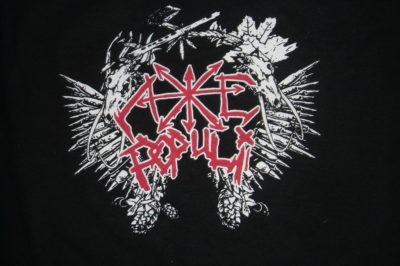
Easy color separations in Photoshop
3 September, 2008 – 12:35 pmSomeone emailed me that other day to ask how to separate the colors in Photoshop in a multiple-color design that she wanted to screen print. I went over the process of how I do it, and I will go over it here as well.
1- Make sure that all your colors are flat, no shading or gradiation, all colors must be flat. What you are going to do is to make every color its own layer. To do this, use the magic wand tool, turn off the “continguous” check box and click on a color. Every section of that color should be selected now. Then go to Layer, New, Layer via Cut, and boom, that color is now its own layer. Label the layer with the name of the color so that you don’t get confused later. Do that with every color until each color is in its own layer. (If there is a little bit of shading or fading of the color, one thing you can do is to increase the tolerance so that it selects the color and shades real close to that color.)
2- Once every color is in its own labeled layer, it’s time to make them all pure black. Remember, the designs printed onto your films has to be as black as possible for proper burning of the screen. If it’s not as black as you can get it, then you will have trouble washing out the screen to make the stencil. So to make the layers black, select one layer from the right-side menu and use the magic wand again to select all of the color, then hit shift+f5 to use Fill to make the color into pure black. When you get to the Fill menu, select Black from the top pull down menu under Contents, Use:. This should make every part of that layer pure black. Repeat this for every layer/color.
3- Add crosshairs for registration. You’re going to want to print crosshairs at the corners of every film so that you can line up the screens on the press. To make crosshairs, I just use the line tool to draw crosses in the corners. Make the crosshairs an appropriate size for the mesh count you’ll be burning. If you make crosshairs out of lines that are really thin, they may not come out well in a low mesh screen, or at all.
4- Print out your films. To print one color at a time, just use the Layers box towards the right side of the screen to turn on visibility of just one layer and also the crosshairs layer, so that they are the only parts that show. When you print, it will just print what’s showing, IE the one layer/color of the design and the crosshairs. After you print that layer, uncheck the visibility of that color and check the next color, and on and on until you’ve printed all the layers out. Just be sure that you’re printing crosshairs with every layer.
That’s it, pretty easy really. The only time it becomes a big deal is if the artwork isn’t flat, if it has shading or fading. You can work around this by adjusting the tolerance with the magic wand and trying to capture all the fading that is supposed to be the related flat color before making it into a layer. If you do this, make sure the tolerance is at the same number when you use the magic wand before doing a Fill, so that all the fading is selected and then turned black. After you print the films, you can line them up to make sure it all looks proper before you burn the screens.
Happy printing.
2 Responses to “Easy color separations in Photoshop”
thank you very much it really helped me.
By cezar on Sep 7, 2008
Something you might find easier than manually adding crosshairs at the corner for lining layers up, you can always use the bleed marks in the print options instead, though I believe photoshop now calls them corner crop marks. As long as the document sizes are all the same they should match up.
By Gavin on Feb 10, 2009